Custom Responses
Custom Responses allows defining how a protected application reacts when a detection is triggered. Instead of relying only on the default behavior, you can configure a sequence of actions that the app performs when a threat is detected.
Overview
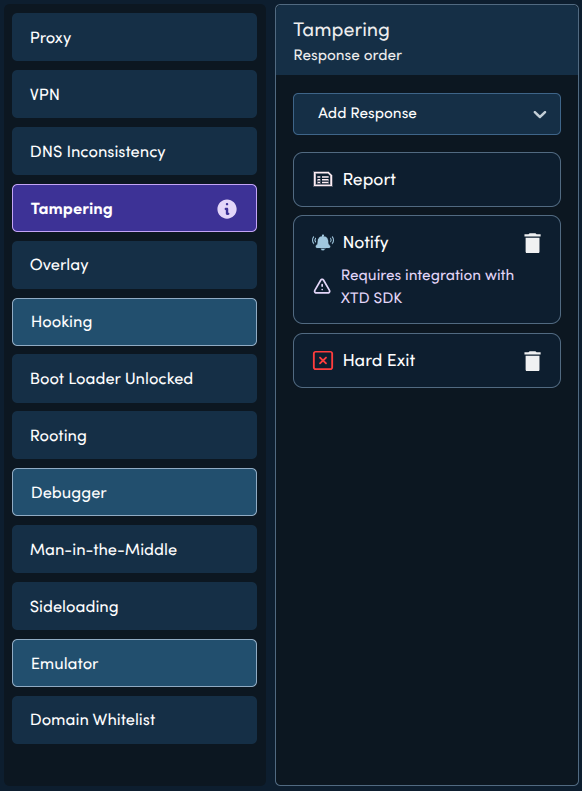
Each detection (for example Debugger, Proxy, or VPN) can trigger one or more responses. Responses are executed in order, from top to bottom.
You can add, remove, reorder, and configure these responses for each detection.
Enabling Custom Responses
To enable custom responses:
- Toggle Enable custom responses.
- Configure responses for the detections you want.
Once enabled, the configured responses will be applied to the next protected build of the application.
Configuring Responses
After selecting a detection, you can configure its responses in the right panel.
Responses run sequentially in the order shown.
You can:
- Add a response
- Reorder responses
- Remove responses
- Configure response parameters
Response Types
Report
Reports the event to the analytics server.
- This response is always active.
Notify
Notifies the client app about the event via the XTD StubLib callback.
⚠️ Requires integration with XTD SDK
Open URL
Redirects the user to a specified URL.
Example use cases:
- Redirect users to support pages
- Display security guidance
- Send users to a secure login page
Configuration
- URL must start with http:// or https://
Example:
https://example.com/security-warning
Popup
Displays a message popup inside the application.
Configuration
- Message text (required)
Example:
Security issue detected. Please restart the application.Sleep
Pauses application execution for a specified time.
Configuration
- Time in seconds
- Allowed range: 1–10 seconds
Soft Exit
Terminates the application gracefully.
The application closes normally without crashing.
On iOS, Soft Exit behaves similarly to Hard Exit
Hard Exit
Immediately terminates the application.
This is typically used for high-risk security events.
Response Execution Order
Responses execute top to bottom.
Example:
- Report
- Notify
- Popup
- Soft Exit
In this configuration:
- The event is reported
- Monitoring systems are notified
- The user sees a message
- The application closes
Save as Default
Save as defaults for this app
- Future builds of the application will use this response configuration.